

APS media player for videos
Our media player works without a separate input on the video switcher. You can easily switch between videos, images, and presentations on one display without any artifacts. Play videos over your presentations and enjoy smooth fade-ins and fade-outs for video loops. The feature-rich Companion module turns your Stream Deck into an intuitive video remote control.
The media player is now available for both Mac and Windows versions of APS.
1. Media player user-interface
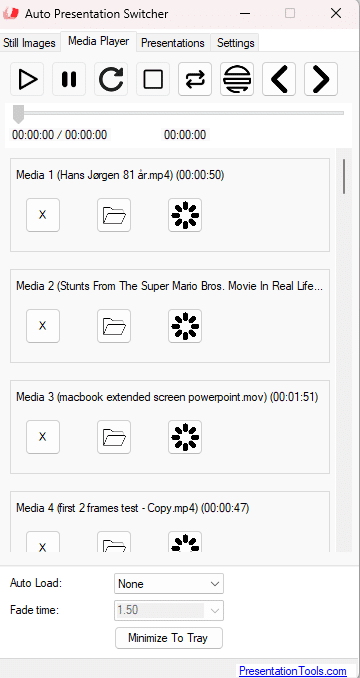
You can play up to 40 different videos, images or audio-files. The media will be displayed on the screen chosen from “Main presenter screen” in the settings.
1.1 Getting started
First, choose a media for the slot by pushing the folder-icon, or drag and drop a media-file onto the button.
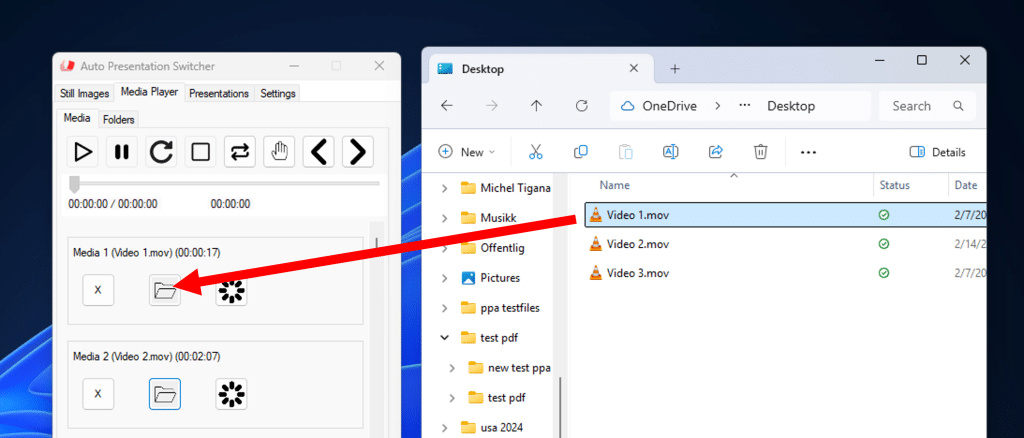
Before a media can be played, it must be loaded. Load a media by pushing the load-icon. Then the next time you push the play-button, the media will play.
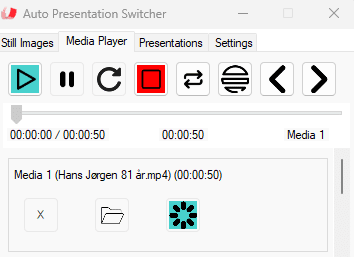
Video 1 is loaded and ready to play
By default, the media will play until the end. If you quickly need to exit the video or image, push the “stop” button. If the user-interface is covered by the video, you can first push on the video-window with the mouse, then push the “escape” button,
1.2 Playback buttons


The play-button will start the loaded media from the beginning.

Toggle pause/play on the currently playing video

Restart the playing video

Stop the playing video, or, if a video is loaded but no video is playing, remove the load so that no media is selected for playback.

Loop the video

Hold at end. The video will freeze at the last frame.

Loads the previous media in the list. For example, if video 3 is loaded, this button will load video 2 if a media exists there.

Loads the next media in the list, mirroring the previous button
1.3 Timeline

For video and audio file, the timeline will show the progress of the video, total duration and name of the vide. You can drag the cursor to a new playback-position.
1.4 Select and load media
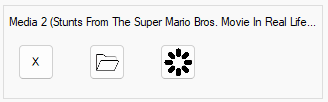

Shows the media-slot number, name of the media-file, and length.

Remove the selected media

Select media. You can also drag and drop media-files to this button to select them.

Load the media
1.5 Options at the bottom of the menu
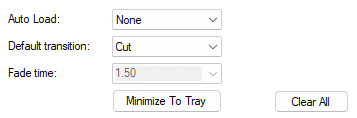
Auto-load
Select which video will load next after a video/media has started. “None” will select no media. “Repeat” will load the same media again. “Next” will load the next media in the list.
Default transition
Select how playback will start and end. With the fade-option you can fade the video in and out with the desktop-background. Note that you cant crossfade between videos, only fade in/out the vide-window.
The fade-time sets the duration of the fade when fade-mode is selected. This value is linked to the fade-time of the still-images, so if you change this value, it will also be changed for the still-images.
1.6 Keyboard-shortcuts for the media-player
These are global keybard-shortcuts that will be activated while APS is running*
Ctrl + Alt + 1: Play
Ctrl + Alt + 2: Pause
Ctrl + Alt + 3: Restart
Ctlr + ALt + 4: Stop
2. Create a Companion page for the media-player
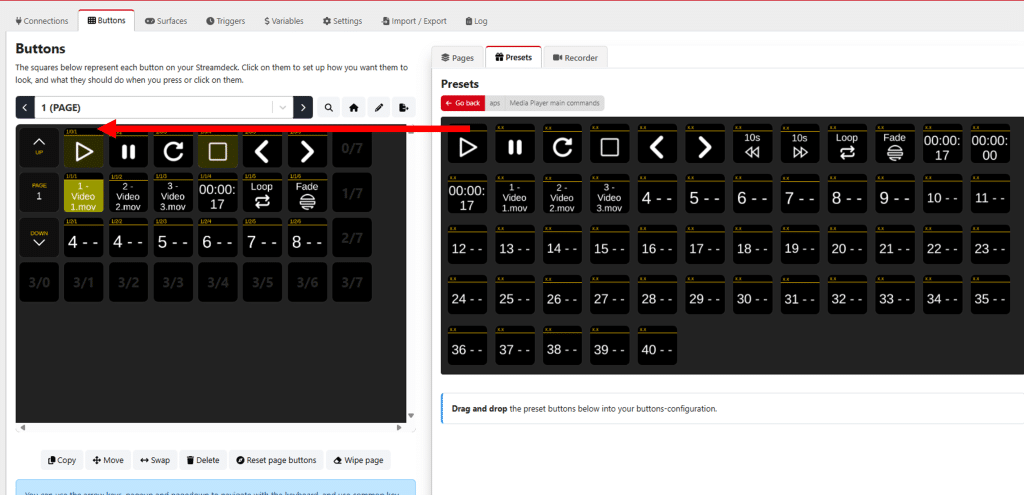
From the presets you can create a Companion-page that more or less emulates the media-player control found in the APS user-interface. In the presets, go to the “Media player main commands” then drag and drop buttons as needed. Among the Companion commands you will find:
Playback commands
play, pause, restart, stop
Video timers
Get the total duration, elapsed time or remaining time of the current video
Settings for loop, fade and “Hold at end”
Loop” will loop the video infinetily. “Fade” will fade the video with the desktop-background when starting and stopping videos. “Hold at end” will keep the last frame after the video has ended
Video slots
Choose between 40 pre-selected videos. When a slot is selected, it will be cued for playback
Navigation-buttons
Select the next and previous slot for media-playback
The video shows an example of how you can control the media-player from the preset buttons. To start a video, first select any of the 4 available videos on the bottom row, and use the playback-control to start and stop the video.