 APS Hub
 APS articles
We have collected articles about APS workflows, Companion control, media playback, presentation clickers, and practical AV setups.


When the next speaker walks on stage, the right presentation should be one button-press away — not buried in a folder. APS gives AV technicians one-button control over PowerPoint, Keynote, Google Slides and PDF, from Stream Deck, Companion, keyboard or the presenter's own clicker.
Switching decks looks like a clean cut between two slides. A last-minute video plays on top of the output, no extra equipment. And when the show needs a backup or a second room, the free APS Hub keeps every machine on the same slide.
Transform your Stream Deck into a powerful presentation controller, allowing you to start presentations, navigate slides, and monitor your files.
With Companion, you can control your presentations from anywhere over the network. For main and backup systems, APS Hub keeps the machines in sync while your Stream Deck fires the commands.
Some machines APS can’t remove: the backup mirroring the main, the stage computer and the one feeding the confidence monitor, the second room. Same deck on two or three computers, and an operator hoping nobody drifts a slide.
APS Hub watches all of them. Pick one reference machine and Hub keeps the others on the same presentation, the same slide, the same animation step — opening and closing decks to match, and telling you honestly when something is out of step. Plug the presenter’s clicker into the Hub computer and one press advances the whole group at once.
Between all that, Hub is still the operator’s page for the rig: see what every machine is showing, change settings while the show runs, push a corrected deck into a slot or configured presentation folder without touching the machine.
APS Hub is free. Each presentation computer runs APS 4.5 or later.
Clicker Distributor advances the group. Presentation Sync checks that every machine stays in step.
You can use APS without Companion, thanks to our powerful keyboard shortcuts. While displaying a presentation, simply press the NEXT shortcut (Ctrl + Right Arrow for PC or Command + Right Arrow for Mac) to move to the next presentation in the folder.
To prepare for your show, organize all your presentations alphabetically in a folder. Start the first presentation for the initial speaker, and during the event, press the NEXT shortcut whenever you need to switch to the next presentation.
An even easier way to switch presentations is to use the presentation clicker. When the “link presentation” feature is on, pressing “next” on the clicker at the end of a presentation will take you to the next presentation alphabetically in the folder.
If you move too far forward, pressing “back” on the clicker will return you to the last slide of the previous presentation.
Switching to the next presentation looks like a cut — or a fade — between two slides. The audience never sees the swap: while the new deck loads, APS holds a still of your last slide on screen, then the new presentation takes over.
The same still-image layer works between speakers and mid-show. Hold your client’s logo when nothing is playing, or freeze the screen while you step out of the presentation to fix a slide. The point is simple: the transitions are taken care of.
It happens on every show: a video that isn’t in any deck, and no spare input or device to play it from. The APS Media Player plays videos, images and audio on top of the presentation output — same machine, same screen, no extra equipment. Fade it in over the current slide, fade it out, and you’re back in the deck. The simplest way to add an external video to your production. Now on both Mac and Windows.
New in APS 4.6
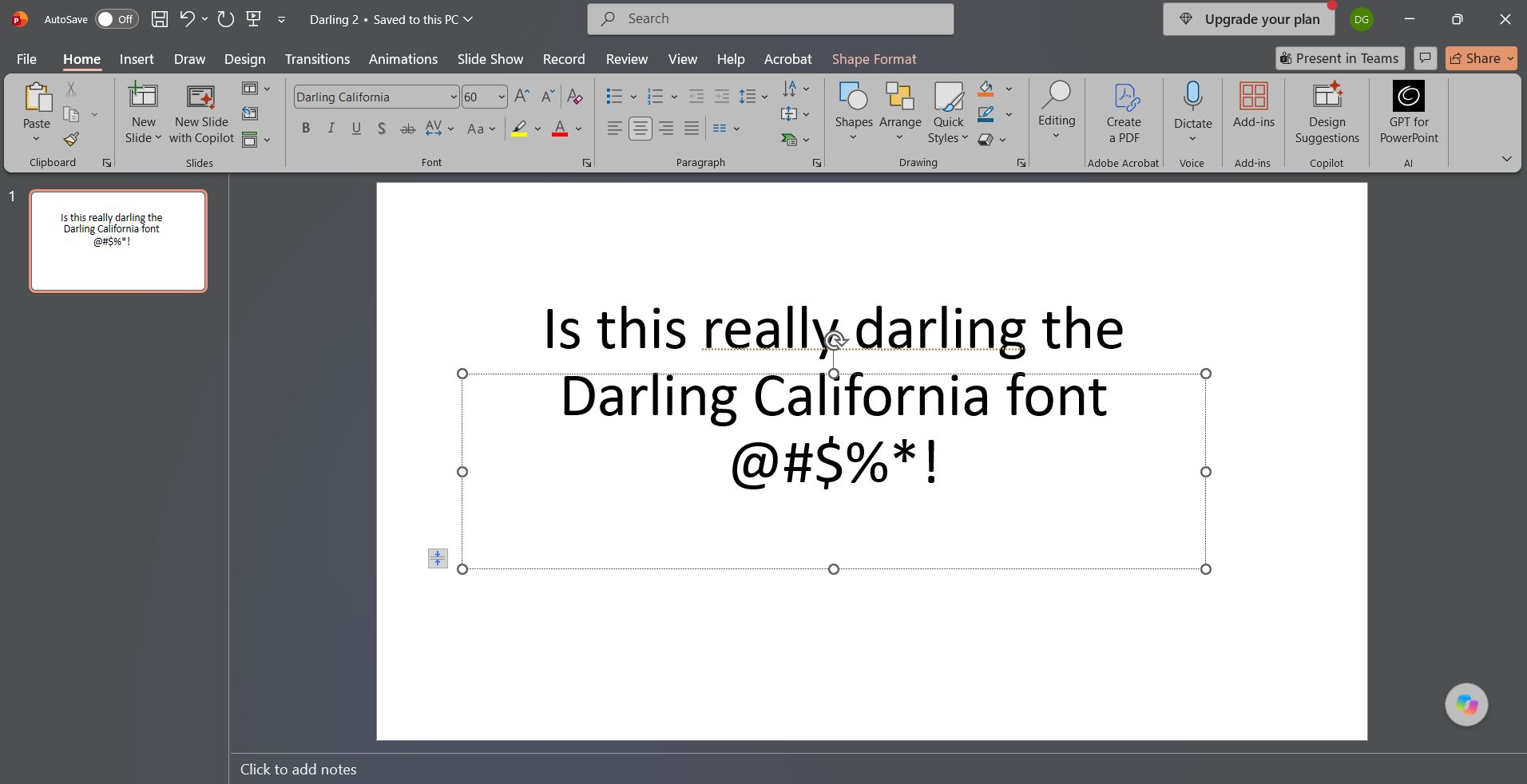
PowerPoint never tells you when a font is missing. It quietly swaps in another one, and the speaker’s carefully designed slides look wrong on the big screen.
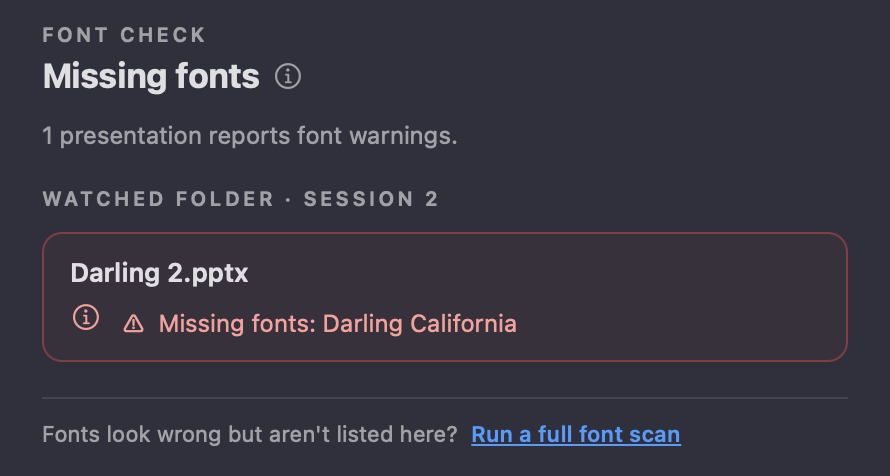
Font Control in APS scans the PowerPoint and Keynote files in your slots and watched folder, compares them with the fonts installed on the show computer, and warns you about anything missing — while there is still time to fix it.
Running several machines? APS Hub shows the same warnings for every computer and installs the missing fonts over the network, straight from your browser. New in APS 4.6 and APS Hub 1.1.

APS has become an essential tool in our event operations at Light up. It gives us the flexibility and speed we need in high-pressure, live environments — especially in corporate events where last-minute changes are part of the game. Being able to quickly upload and manage content such as presentations, videos, and images during a live plenary session makes a huge difference in the overall delivery and professionalism of the event.Flávio Carramillo Filho, Light up Iluminação & Eventos, Brazil

We at JCP use both CueTimer and APS from PresentationTools in our day-to-day work, and they work really well. CueTimer gives us great control over timing and cues, and together with APS everything flows seamlessly throughout the entire production. It makes our job both easier and more efficient when we’re out on assignments.Huy Nguyen, JCP, Norway

APS is an invaluable part of our setup, especially for productions with limited crew. To be able to switch between presentations seamlessly on 1 machine simplifies our setup a lot, and enables us to deliver professional, sleek looking events with a minimum of hardware and crew.Vegard Lunde Wiik, Grevent, Norway
 Mark Wehbeh, Spacetune Events, UAE
 I am a technologist and a power user of apps and I can tell you that PresentationTools apps are few of the best tools I have ever used during my shows.
 David Szoka, The Farrall Centre, Australia
 Your software saves me so much time and stress.. Combined with companion just makes it easy for me to have 6 different PPTs for one assembly
 Livestream Producer at Tekna, Norway
 APS changes presentations with one button in about 2sec and we now enjoy a stress-free handling of whole folders full of presentations. APS is truly a lifesaver and makes presentation switching a breeze.
I have just purchased and put APS into use at a conference. It worked very well and will be a very useful tool for me going forward. Will continue to recommend it.
Run Google Slides, Slido, Kahoot and other web apps directly in Google Chrome — controlled from Stream Deck buttons through Companion.
APS automatically detects Google Slides presentations and handles them like any other presentation format: put them into slideshow mode on your external display with optional presenter view, navigate slides, and monitor slide progress on your Companion buttons — using the same commands you already use for PowerPoint.
Switch PowerPoint, Keynote and PDF presentations with keyboard-shortcuts and network commands
Display still-images and screenshots on top of the screen. Use these images to create seamless transitions between presentations.
Media player that can play videos, images and audio-files. Fade in and out videos seamlessly on top of the display (Mac and Windows)
An open API that lets you control APS over the local network through TCP/IP commands.
Companion-module that uses all of the network-api to control and monitor APS
Font Control: scan PowerPoint and Keynote presentations for fonts that are missing on the show computer, and get warned before the wrong font reaches the screen. Install missing fonts remotely from APS Hub.
Presentation Sync (APS Hub): keep the same presentation, slide and animation step across a group of APS machines that follow one reference machine.
Clicker Distributor (APS Hub): one clicker on the Hub computer drives a whole group — Next, Previous, blackout, freeze and still images on every machine at once.
APS Hub: monitor and control every APS machine on the network from one browser page, and upload files into slots or configured presentation folders. Free companion app for Mac and Windows.
“Freeze screen” command that takes a screenshot and displays it on top. The effect will be like the freeze button on hardware video switchers.
Fade images and screenshots seamlessly in and out on top of the display. Fade time can be adjusted.
Companion-commands to start specific presentation-files based on filename and filepath
40 slot-presentations that gives you an easy way to choose presentations that you can open with button-clicks. In Companion the slots will get colors to indicate its status, giving you confidence in selecting the correct presentation
The “Next” and “Previous” commands will check the current presentation displayed, then open the previous or next presentation in the folder.
All the presentation-commands comes with 2 parameters: – open the presentation in fullscreen or in edit-mode – set the slide from which the presentation should open
The “open presentation” commands will first close the current presentation before displaying a new. This ensures that the computer is never overloaded with multiple presentations displaying at the same time.
No plugin required to control presentations. One installation of APS is all you need to control different presentation-types
Native desktop-apps for Mac and Windows that are light on system-resources. Built for demanding live-shows.
Commands to emulate the keyboard for generic slide control: go back, forward with the slides or exit the presentations
Commands to navigate the slides using PowerPoint, Keynote and Adobe Acrobat DC API. These commands will work no matter which program is in keyboard-focus
Feedback for which shows which slide you are on, and how many slides in the presentation. Works with PowerPoint and Keynote
Get the name of the current presentations displayed, along with the previous and next in the folder
Program-UI from where you can control images, presentations, videos (PC) and change program settings.
Command to close all presentations except the one currently displayed. This is used to clear the desktop and allowing the files to be edited remotely
Update notifications and auto-updates: You will be notified when a new version is available, and you can install the new version from within the program
With a subscription-licence you can create an account on this site where you can monitor your licences, release licences from activated computers, and manage your subscriptions registered to your email-address.
Keep going — explore the guides, workflow articles, and video tutorials.
We have collected articles about APS workflows, Companion control, media playback, presentation clickers, and practical AV setups.
The user-guide will be our reference on how to install, configure, and operate APS for Mac and Windows.
If you prefer learning by watching, the PresentationTools YouTube channel has APS demos, release walkthroughs, and tutorials for Companion and Stream Deck workflows.
Download APS for Mac or Windows and test the full workflow in 20-minute trial sessions before activating a licence.