

Auto Presentation Switcher
User Guide Mac
On this page User Guide Mac
0. Introduction
Auto Presentation Switcher (APS) helps you display presentations, images and videos on your computer. You can switch presentations seamlessly, display videos and images on top of your presentations, and display a screenshot when no presentation is displayed.
APS can be controlled from the user-interface, using global keyboard-shortcuts, or over the local network using APS Hub or Bitfocus Companion.
1. Compatibility
1.1 System requirements and supported software
Mac requirements
macOS 11 or later.
CPU architecture
APS works natively on both Apple silicon and Intel CPU-architecture.
Programs and file-extensions
Keynote
.key
Powerpoint
.pptx, .ppt, .ppsx, .pps, .pptm and .ppsm. We recommend using .pptx if possible.
Skim PDF and Adobe Acrobat Pro
.pdf files can open in either of these programs.
Still-images
Jpeg or PNG files
Presentation-software version compatibility
In general we recommend updating to the latest versions of these programs listed above. APS Mac may work with older versions of presentation-software, but performance can’t be guaranteed
Media player
Video, audio and image files supported by macOS playback. Test the actual file and codec, sound output and ending before the show.
Web browser
Google Chrome, using the separate browser session opened by APS.
1.2 Network control
APS can be controlled over the local network through its public API. The API is free for anyone to use directly, whether you want to build your own controls or connect APS to other systems.
APS Hub and Bitfocus Companion are two ready-to-use integrations that use this same API to control APS:
APS Hub
APS Hub is a separate, free app for controlling one or more APS computers over the local network from a web browser. APS runs on each presentation computer, while Hub can run on one of those computers or on a separate Mac or Windows computer. See the APS Hub user guide for requirements and setup.
Bitfocus Companion
Bitfocus Companion is a separate app that lets you control APS from a Stream Deck or Companion’s web buttons. It connects to APS over the local network using the APS Companion module. See the Companion connection guide for setup.
The font controls described in Fonts require APS 4.6 or later. To use them from Hub, use APS Hub 1.1 or later.
2. Installation and licence
2.1 Installation
Download the Mac disk image, open it, and copy Auto Presentation Switcher to Applications. Launch the copy in Applications. When the app starts for the first time it will enter trial-mode. In this mode the app will work normally for 20 minutes and then close. To use the app without restrictions, licenses must be installed.
If the main window is hidden, choose Main menu from the APS menu at the top of the screen. Use Check for updates in that menu to check for an update; test presentation control and permissions afterwards.
2.2 Activating the licence on a new computer
After you buy a licence, this will be e-mailed to you. When you open APS, you will first see this menu:
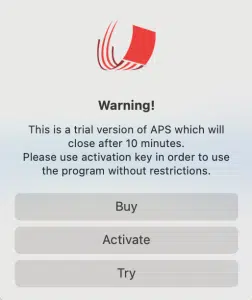
Push Activate. Now copy and paste the licence-code from your mail into the activation field and push “Activate”. The licence is now installed
! This process requires Internet-connection, and your computer must be able to contact our server which is placed on the domain www.presentationtools.com. Make sure that no firewall on your computer prevents the APS application from contacting our server.
2.3 Using the licence
The licence can only be activated on one computer at a time. The licence-key is stored in the user-data on your computer. This means that if you change the user, you will have to repeat the activation-process, or use another licence.
After you have activated the licence to your computer, you can use APS also while not connected to the Internet.
2.4 User-account on PresentationTools.com

If you have a yearly subscription for your licence, you can monitor and release your APS licences from our webpage. To do this you need a user-account using the same email-address registered to your licences. Accounts can be created from this page. You must verify your Email-address to complete the process. After the user has been created, you can go to the Dashboard-page and manage your licences from there.
To access your licences, push the “Keys” button for your subscription.
2.5 Switching the licence to a new computer
From the image above you can see that the APS licence is “In Use”. This means that this licence is now activated on a computer. To use the same licence on a different computer, you first need to deactivate the licence from your current computer. You can do this by pushing the Release button. The licence will now be free to use on a different computer. The old computer with the licence does not need to be online for this process to work.
The second way to release the licence is directly from the user-interface in the application. From the top menu-bar, go to Activation, then push the Release button. This process requires Internet connection.
! Note that uninstalling the application itself does not de-activate the licence, since this process does not involve our web-server. It is possible to have a licence registered to the computer also when APS is not installed on the machine.
To activate the licence on a new machine, repeat the steps from 2.2
2.6 Computer tag
If you tag the computer, this name will be shown in the user-dashboard under “Computer Name”. This can be a useful feature if you need better control of which computer(s) has the licence(s) installed.
3. Security and privacy settings
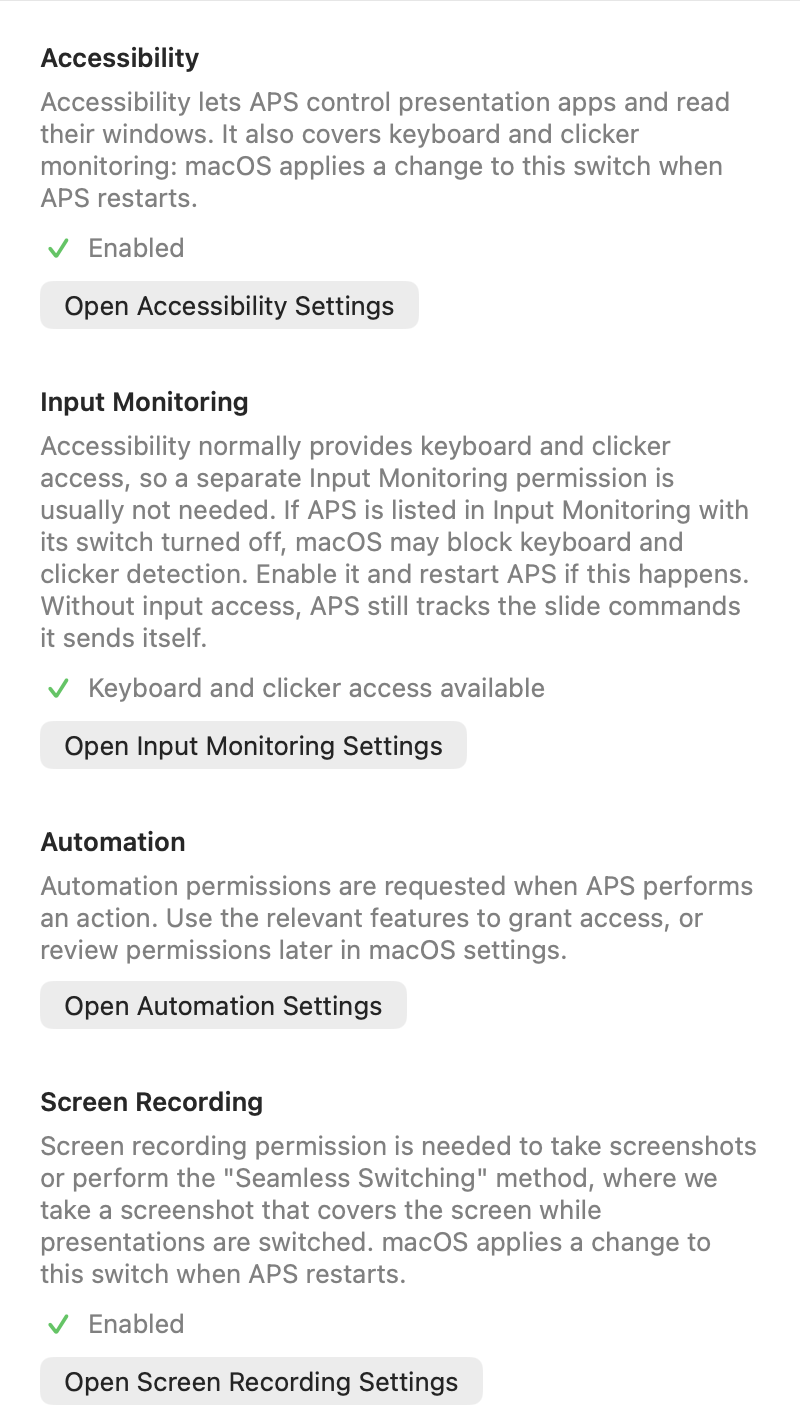
Auto Presentation Switcher needs specific macOS permissions to function properly and automate your presentations. To get an overview of your current permissions, and links to where you can set them, you can open the App Permissions window from the top menu bar. Here is an overview of what app permissions are needed for APS Mac to work properly:
- Disk Access (Files & Folders or Full Disk Access)
The app monitors presentation folders to detect new or updated files and open them automatically. This requires direct access to the file system. - Accessibility
This permission allows the app to control presentation software (PowerPoint, Keynote, Skim, Adobe Acrobat Pro) by simulating user actions like advancing slides or opening files. - Automation
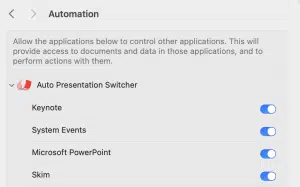
The app communicates with other applications to open and control presentations. macOS requires explicit permission for controlling PowerPoint, Keynote, Skim, Adobe Acrobat Pro, and System Events. - Screen & System Audio Recording
Auto Presentation Switcher can take screenshots and display them. This is used for the “Seamless Switching” method, and the “Capture” command in Companion.
3.1 Accessibility
When you open the program for the first time, this popup-window will appear:
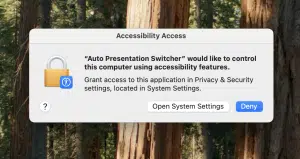
Use the button to open the relevant macOS settings. On recent macOS versions this is System Settings → Privacy & Security → Accessibility.
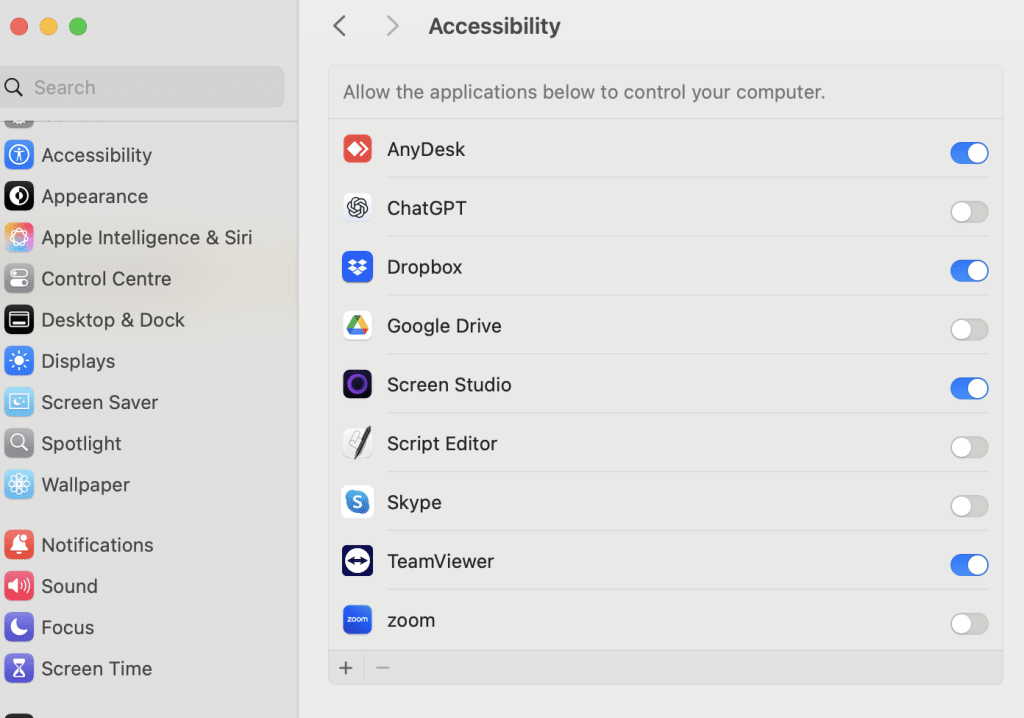
Here you will need to do the following:
Enable Auto Presentation Switcher in Accessibility. If it is missing, use the + button to add the installed copy from Applications. Authenticate if macOS asks. Older macOS versions use System Preferences and a lock button. Follow APS’s status message and restart APS when requested.
3.2 Automation
The first time APS opens a program for presentations, you will be prompted to allow automations. You will need to allow this for APS to control the presentation-programs.
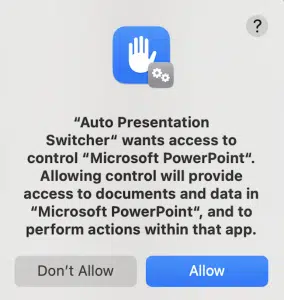
If you push “don’t allow”, you can always enable this permission later from the Privacy and Security settings:
3.3 Files and folders
When macOS asks whether APS may access a presentation or media folder, allow access to the location you intend to use.
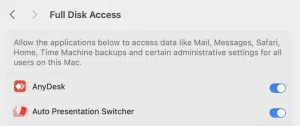
You can also give APS permissions manually from the security & privacy menu. Allow the folders you use with APS under Files & Folders. Full Disk Access is a broader option for locations that need it:
Font checking can also ask for access to Office cloud-font locations when you turn it on or run a full scan. This permission is not requested by an ordinary APS startup. Choose Allow when macOS asks; if access was denied, use Restart APS and Scan in Presentations → Fonts. See Fonts.
3.4 Screen recording
The first time you take a screenshot, or try to switch presentations seamlessly, you will be prompted to allow screen recordings:
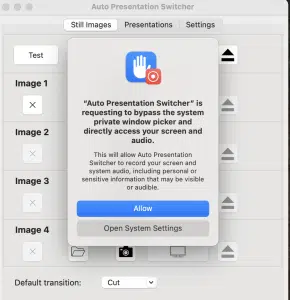
Go to System Settings to change these permissions, similarly to how you do with Accessibility. Note that you need to restart APS for these changes to take effect.
3.5 Updating APS and permission settings
After an update, open App Permissions and test presentation control, capture and keyboard input. Check that permissions refer to the installed copy you run. A permission can be enabled in System Settings but still require APS to restart; follow the effective status and restart instruction in the permission window.
Keyboard and clicker access
Accessibility normally provides the input access APS needs. Separate Input Monitoring permission is usually unnecessary. If APS is listed in Input Monitoring with its switch off, macOS may block keyboard and clicker detection. Follow the App Permissions guidance and restart APS if required.
Hub can show the APS Mac permission status, but changes are made on the Mac. See permissions in Hub and Apple’s Accessibility instructions.
4. Control presentations with keyboard shortcuts
APS registers these shortcuts globally, so its main window can stay in the background. Presentation commands act on the active supported presentation app. Keep that app in focus when switching files; if you click another program, return to the presentation first.
Use Command + Right Arrow to open the next presentation in the folder in full screen. Sort files alphabetically or numerically in running order. These shortcuts switch presentation files; use the usual clicker or arrow keys to advance slides within a file.
| Shortcut | Action |
|---|---|
| Command + Right Arrow | Open the next presentation in the folder in full screen. |
| Command + Left Arrow | Open the previous presentation in full screen. |
| Command + Down Arrow | Open the next presentation without starting its slideshow. |
| Command + Up Arrow | Put the active supported presentation or APS-controlled Chrome page into full screen. This does not close other presentation documents. |
| Command + Option + Up Arrow | Close other supported presentation documents, keeping the current presentation. Save edits first. |
4.1 Prepare presentations
1. Put the presentations you want to display in one folder. Leave all other files outside this folder or put them in a sub-folder.
2. Rename the filenames of the presentations so that they are sorted alphabetically or numerically in the order they will be displayed.
Example:

Or you could use the time of the day:
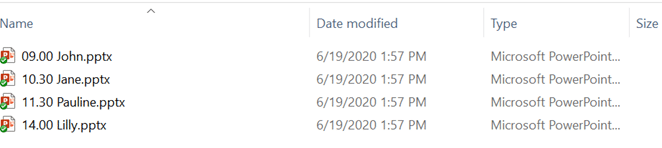
Check the order by sorting filenames in Finder. The examples above show two possible naming schemes.
4.2 Switching between presentations
Open a supported presentation in full screen. Command + Right Arrow opens the next presentation in full screen; Command + Left Arrow opens the previous one. Command + Down Arrow opens the next presentation without starting its slideshow.
In Controlled file-handling mode, the current file must be in the selected watched folder. See Presentation folders and Settings.
4.3 Put files in fullscreen with Command + Up Arrow
With a supported presentation app in focus, Command + Up Arrow starts its fullscreen presentation. PowerPoint and Keynote use their own display settings. APS uses Main presenter screen for supported PDF workflows. This shortcut also puts an active APS-controlled Chrome page into full screen. See Control Google Chrome.
For Skim, enable Use Presenter View for Skim in Settings → Presentations to show the PDF on Main presenter screen and a synchronized view of the same page on another display. The second view keeps its title bar. The setting applies the next time APS starts or displays a Skim presentation; with one display, APS shows only the audience presentation.
4.4 Close other presentations
Command + Option + Up Arrow closes other supported presentation documents, keeping the current presentation. Save edits first. Command + Up Arrow only requests full screen; it does not become a close command when a slideshow is already running.
Escape normally exits the focused presentation’s slideshow. In Skim, it ends the presentation and returns the PDF window to the main Mac display when more than one display is connected, keeping the current page. Exiting a slideshow does not necessarily close its document. Use the still-image eject or Media Player Stop controls to remove those outputs. For shared clicker control, see Hub’s Clicker Distributor.
5. Still images
The still-images is a high-quality image-viewer that can display up to 10 different user-selected images and screenshots, along with internal “black” and “test” image. You can also take a screenshot and display it instantly, known as the “freeze” command.
5.1 Still-images menu
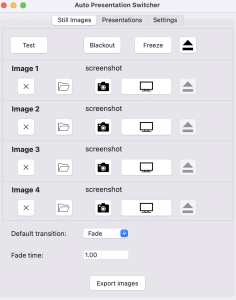
From here you can display images that are screenshots or files from the disk.
The images will always be captured and displayed in the Main Presenter Screen which can be set from the Settings menu.
Buttons are explained below

Display color bars

Display black screen

Take a screenshot of the Main Presenter Screen and display that as an image
Image 1-10
There are 10 user-configurable images that can be displayed. They can be set in 2 different ways:

Load image from file. This button also works with drag and drop.

Take a screenshot of the Main Presenter Screen and load this as the selected image
These two options above will override what was previously selected. To delete the selection, press the X button at the right edge of the row. It is unavailable while that image is displayed.

Display the selected image. The active image button is highlighted.

Use Eject at the top of Still Images to remove the displayed image.
5.2 Keyboard shortcuts for still images
These global shortcuts do not depend on presentation focus. Use Control + Shift on both platforms, including Mac. Capture replaces the image in the selected bank; it does not display it.
| Shortcut | Action |
|---|---|
| Control + Shift + 1 | Display image bank 1. |
| Control + Shift + 2 | Display image bank 2. |
| Control + Shift + 3 | Display the test pattern. |
| Control + Shift + 4 | Blackout. |
| Control + Shift + 7 | Capture the Main presenter screen into image bank 1. |
| Control + Shift + 8 | Capture the Main presenter screen into image bank 2. |
| Control + Shift + F | Freeze: capture and display the Main presenter screen. |
| Control + Shift + Escape | Eject the still-image output. |
Transitions and visible output
Choose Cut or Fade and set the fade time in Still Images. These transition settings are separate from Media Player’s. With image toggling enabled in Settings, repeating an active image command can turn it off; use Eject to remove it explicitly.
A still image, Freeze or Blackout can cover a presentation while its slides, video or audio continue underneath. It does not pause or mute playback. If Keep media player above still images is enabled, media stays above the image, including Blackout. Check the audience screen and stop media when it must stop.
Use still images from APS Hub, including bank assignment, capture and group controls.
6. Media player
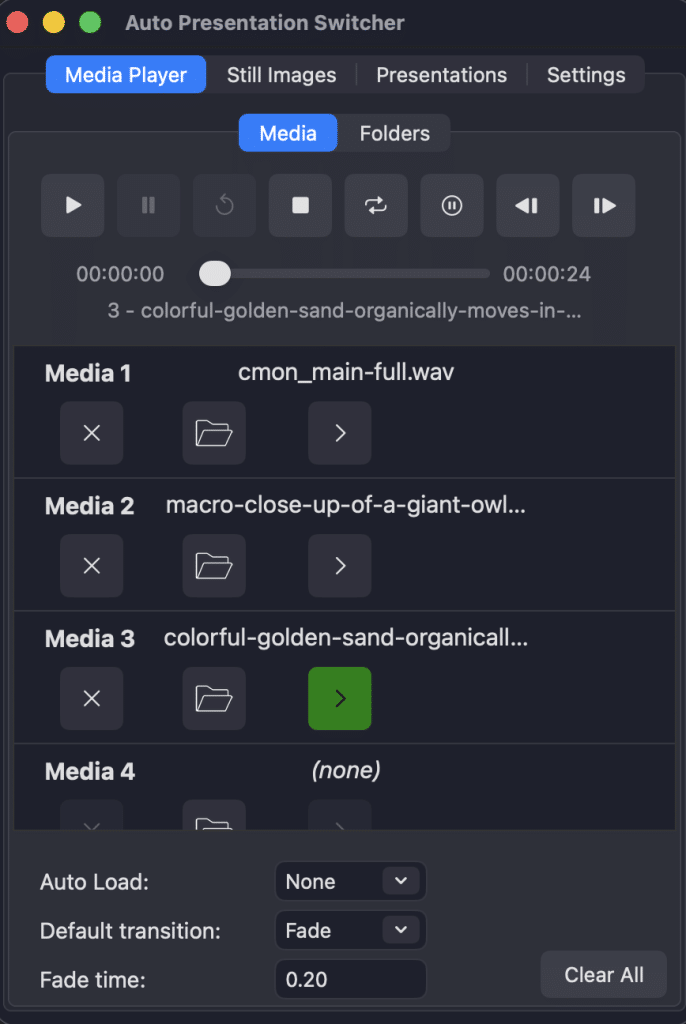
The Media player allows you to play up to 40 different videos, images or audio-files. The media will be displayed on the screen chosen from “Main presenter screen” in the settings.
6.1 Getting started
First, choose a media for the slot by pushing the folder-icon, or drag and drop a media-file onto the button.
Before a media can be played, it must be loaded. Load a media by pushing the load-icon. Then the next time you push the play-button, the media will play.
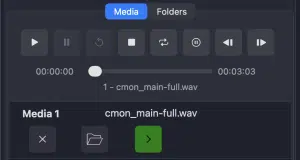
Walk-in Loop in Media 1 is loaded and ready to play
Without Loop or Hold at end, a video plays to its end. If you quickly need to exit the video or image, push the “stop” button. If the user-interface is covered by the video, you can first click the video window, then press Escape.
Assigning a file, loading it and playing it are separate actions. The loaded item and the currently playing item can differ when you prepare the next file. Check the loaded filename before pressing Play. See assigning and loading media from Hub.
6.2 Playback buttons


The play-button will start the loaded media from the beginning.

Toggle pause/play on the currently playing video

Restart the playing video

Stop the playing video. To unload a selected item without playing it, click its green Load arrow again.

Loop the video

Hold at end. The video will freeze at the last frame.

Loads the previous media in the list. For example, if video 3 is loaded, this button will load video 2 if a media exists there.

Loads the next media in the list, mirroring the previous button.
Previous and Next load a media item; they do not start playback. For a predictable ending on either platform, turn Hold at end off when using Loop, and turn Loop off when using Hold at end.
6.3 Timeline

For video and audio file, the timeline will show the progress of the video, total duration and name of the media. You can drag the cursor to a new playback-position.
6.4 Select and load media

The media player has 40 available slots for media selection. To select the media for the slot, push the folder-icon, or drag the file from Finder to the same button.
To start playback of the file, first “load”, or cue, the media by pushing the load button to the right, making the button green. Only one media can be loaded at the same time. The next time the “play” button is push, playback of the loaded file will start.
The X button at the right edge clears the media selection. It is unavailable while that row is loaded, loading, playing or paused; unload and stop the media first.
6.5 Options at the bottom of the menu
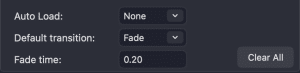
Auto-load
Select which video will load next after a video/media has started. “None” will select no media. “Repeat” will load the same media again. “Next” will load the next media in the list.
Default transition
Select how playback will start and end. With the fade-option you can fade the video in and out with the desktop-background. Note that you cant crossfade between videos, only fade in/out the vide-window.
The fade-time sets the duration of the fade when fade-mode is selected.
Clear all
This will clear all 40 media slots.
6.6 Using the Still-Images and media-player together
In Settings → Media, enable Keep media player above still images to keep media above APS still images, Freeze, Blackout and Test. This option is on by default on Mac. When it is off, the most recently displayed APS output can appear above the other. The still-images can then act as a bottom layer with the media player. For example, you can use this to make the background black when no video is playing, or display a background company-logo.
Media folders
In Media Player → Folders, assign a folder and select it as watched. APS lists files directly inside that folder, excluding subfolders. Prepare folder paths in the native APS app. Hub can select configured folders; see Hub’s Media Player.
Auto Load prepares the next selection after playback starts; it does not automatically play the next file. Clearing a slot or using Clear All removes assignments, not the original files.
7. Slot presentations and folders
7.1 Presentation slots
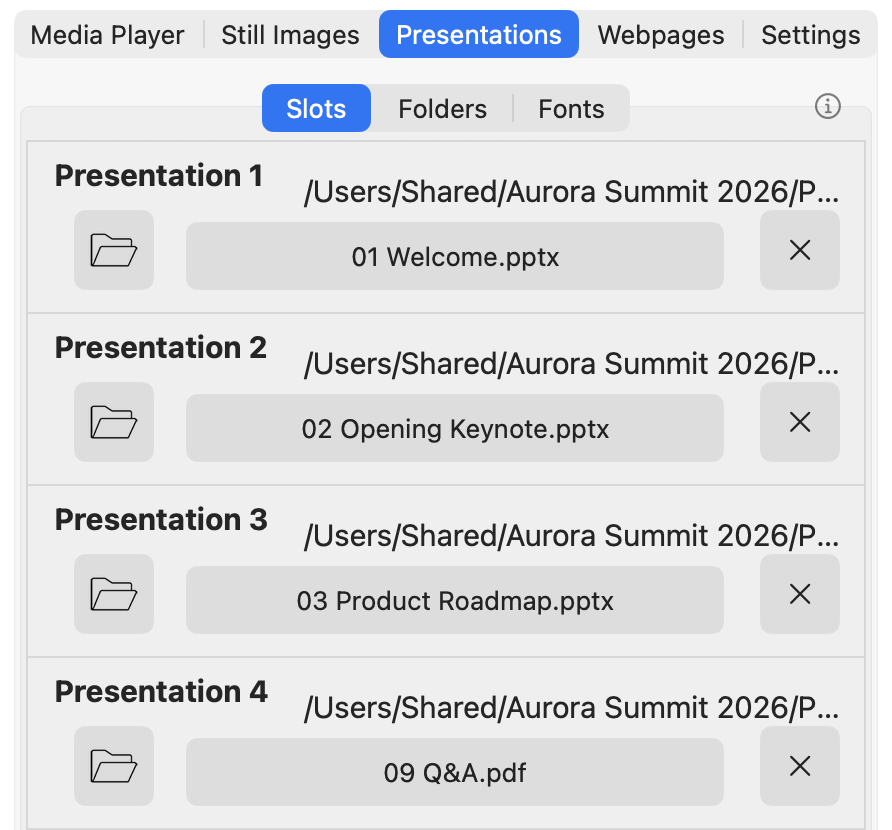
The slot-presentations lets you choose 40 presentations that you can open and display from the APS menu or through the network using APS Hub or Companion. This menu has 3 buttons which are explained below:
Push this button to select the presentation for the slot. You can also drag the files to this button to select them.

The X button at the right edge removes the slot assignment.
Presentation button (the filename)
Displays the presentation in fullscreen. The slot shows the assigned filename and path.
A slot points to a file on this computer; it does not contain a copy. Assigning or clearing a slot does not open or delete the file. If you rename or move the file, update its assignment. See presentation slots in Hub.
When font checking is on, slots show a short font status when an issue is reported. Choose View in Fonts for the full report.
7.2 Presentation folders
Select the radio button beside a folder to watch it. Click the folder name to open it in Finder. Presentation and media folders list files directly inside the selected folder; subfolders are not scanned. Keynote packages appear as single presentations.
With APS 4.5 (57) and APS Hub 1.0.1, Hub can compare the names and contents of watched presentation files. Content checking requires an active APS licence and runs only while a compatible controller requests it. Checks pause while presentations or webpages are being prepared and during Media Player video playback. Online-only cloud files are reported without downloading them; make the files available locally before using them in a show.
In Hub, use Presentations → Folders → Manage folders to add files to a configured presentation folder or delete eligible presentations to Trash. The destination does not need to be the currently watched folder. Keynote package directories are not upload or deletion targets. Uploads require incoming file transfers to be enabled in APS. Existing filenames offer Save as, Overwrite or Skip; APS refuses unsafe changes to open presentations or while preparing a presentation. See the Hub file-transfer guide.
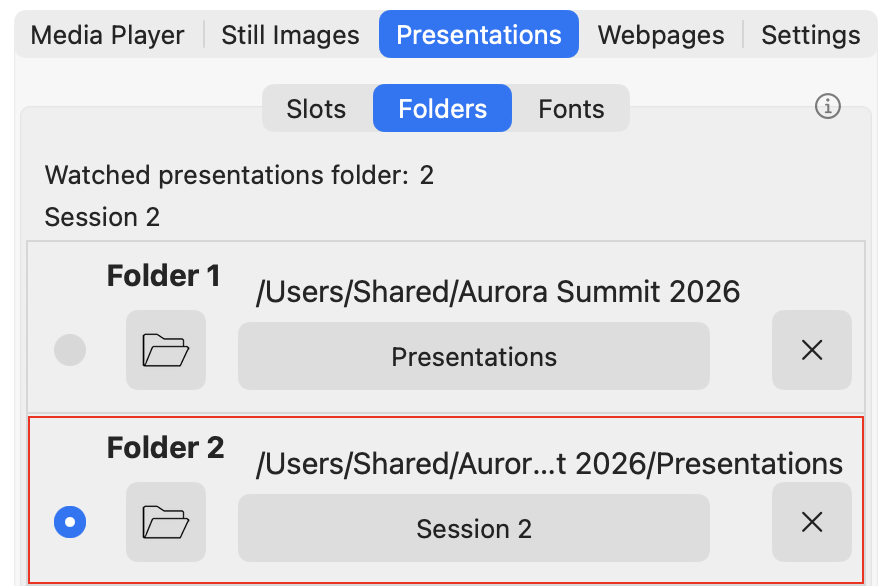
You can select a folder with presentations that you can monitor over the LAN-network through Companion. From the menu, choose up to 20 folders, and select one of them to be “watched”. This folder will be monitored in real-time, and changes to the presentation-files will be updated: if you delete a presentation in the folder, or do name-changes, APS will be notified.
The video below shows how you can use this feature in Companion: You can toggle between your presentation-folders and create a page that shows all the presentations from the watched folder. And you can start the presentations from the same buttons.
For multiple computers, prepare matching copies of the files in each computer’s watched folder. The paths may differ, but filenames and contents must agree. See watched-folder controls, Presentation Sync preparation and file verification, and uploads to presentation folders.
7.3 Fonts
Font checking is off by default. Turn on Check presentation fonts in Settings → Presentations, or from APS Hub. APS checks PowerPoint and Keynote presentations assigned to slots and in the watched folder. The check supports .pptx, .pptm, .ppsx, .ppsm and .key files; PDF and legacy .ppt/.pps files are not checked.
Open Presentations → Fonts to read the warnings and use each information button for an explanation. Slots and folders show a short font status when an issue is reported; View in Fonts opens the details.
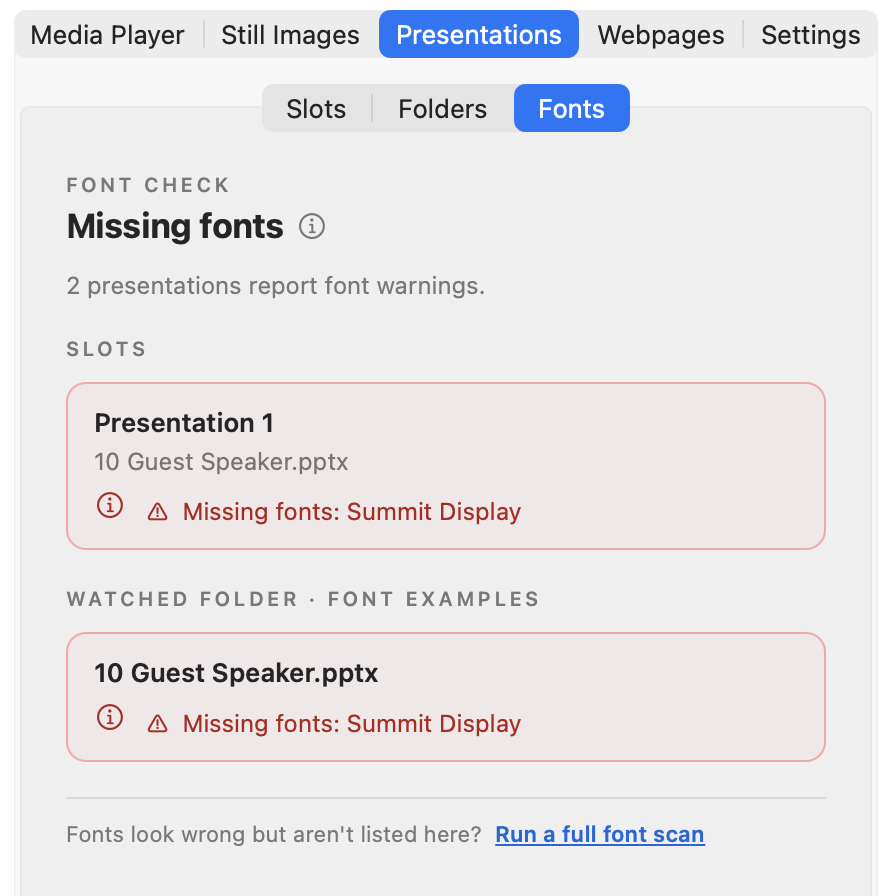
For PowerPoint presentations, choose Show where these fonts are used (Show where this font is used for one font) on a report to list the slides, notes, layouts and slide masters that use each reported font, with the text box or other shape and the start of its text. If a font is used in only one place, you can change it there in PowerPoint instead of installing the font. APS Hub 1.1.3 or later shows the same list.
Choose Export warnings… at the top of the Fonts view to share the warnings as text. Full report lists every warning grouped by presentation, including where the fonts are used; Copy report copies it to paste into an email or message, and Save text file… saves the same text. Missing fonts only lists just the names of the fonts missing from slides, one per line, with Copy list and Save text file…. Both list only the problems APS reported, not every font the presentations use.
Warnings are advisory. Keynote checks can include fonts referenced by unused styles or layouts. No warnings does not guarantee that the presentation will look exactly as intended; check the actual presentation before the show.
Turning on font checking starts a full scan, including Office cloud-font locations. You can run another full scan from the bottom of Fonts, or with the link below an Office cloud font warning. macOS may ask for permission to access these locations; choose Allow to include them. The scan does not download or install fonts. APS will not enable checking or start a full scan while a presentation is displayed or a video is playing.
If the scan cannot finish after you choose Don’t Allow, Restart APS and Scan quits and reopens APS, then retries the scan so macOS can ask again. Connected controllers disconnect while APS restarts.
Restart PowerPoint
If Fonts reports that PowerPoint needs to restart, save all changes and exit its slideshow, then choose Restart PowerPoint now. APS checks that the open presentations are saved before restarting PowerPoint and reopening them for editing. Slideshow-format files (.pps, .ppsx and .ppsm) must be reopened manually using PowerPoint’s File → Open. Follow the result message if a file could not reopen.
Install fonts from APS Hub
With APS 4.6 and APS Hub 1.1 or later, Hub can install .ttf and .otf fonts for the current user. First enable Allow incoming file transfers, then Allow remote font installation in Settings → Network. Remote font installation is off by default and is enabled locally on this Mac. Installed fonts appear in Font Book. Presentations already open may need to reopen, or PowerPoint may need to restart, before the fonts appear. See installing fonts from Hub.
8. Settings
Settings is organized into General, Presentations, Media and Network tabs. Each tab scrolls separately when its options do not fit in the window.
General
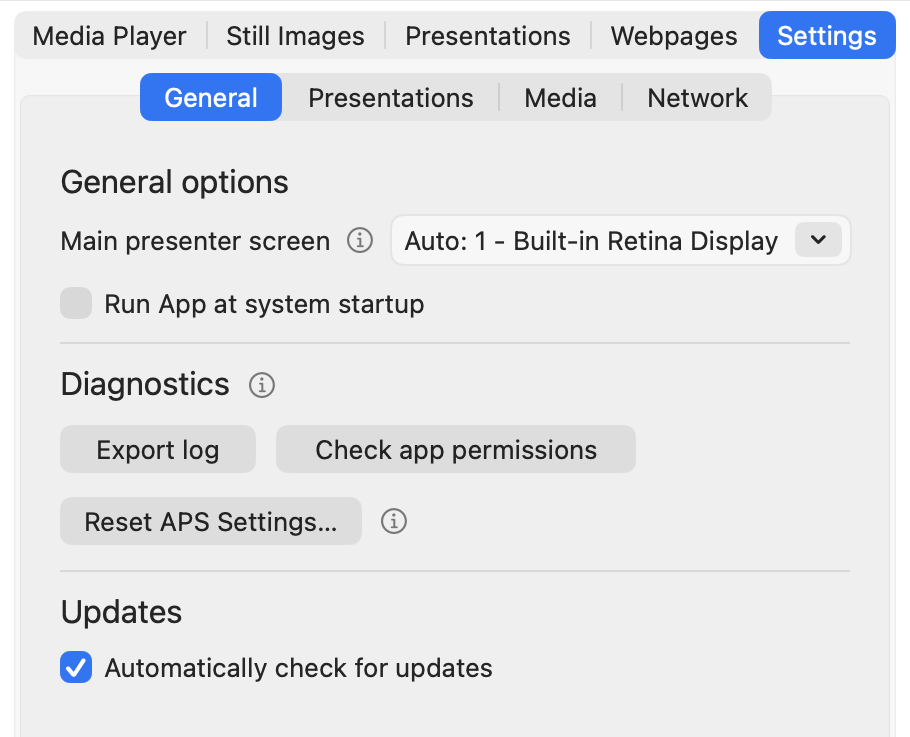
Main Presenter Screen
This sets the screen when:
– displaying PDF-files using APS-methods
– displaying Still Images and screenshots
– capturing screenshots
– displaying images and videos in Media Player
The Auto setting automatically sets the extended screen as the main. In most cases people use the extended screen to display presentations, and then the auto-setting will work fine. If more than two screens are connected to your Mac, it is better to choose this screen manually instead.
Run app at system startup
APS will be automatically opened on system startup
Reopen the main window
Choose Main menu from the APS menu at the top of the screen.
Diagnostics – Export log
APS provides diagnostic tools to help troubleshoot issues. Logs can include file paths, filenames and connection details. Review the exported log before sharing it.
Use Export log when requested by support.
Use Check app permissions to review which macOS permissions APS currently has, and to open the relevant system settings if something is missing.
Reset APS Settings
Use this when troubleshooting unexpected APS behaviour. After confirmation, APS restores operator settings and relaunches. It preserves the licence, APS identity, slot and folder assignments, still images, browser data and user files. It does not reset macOS permissions.
Presentations
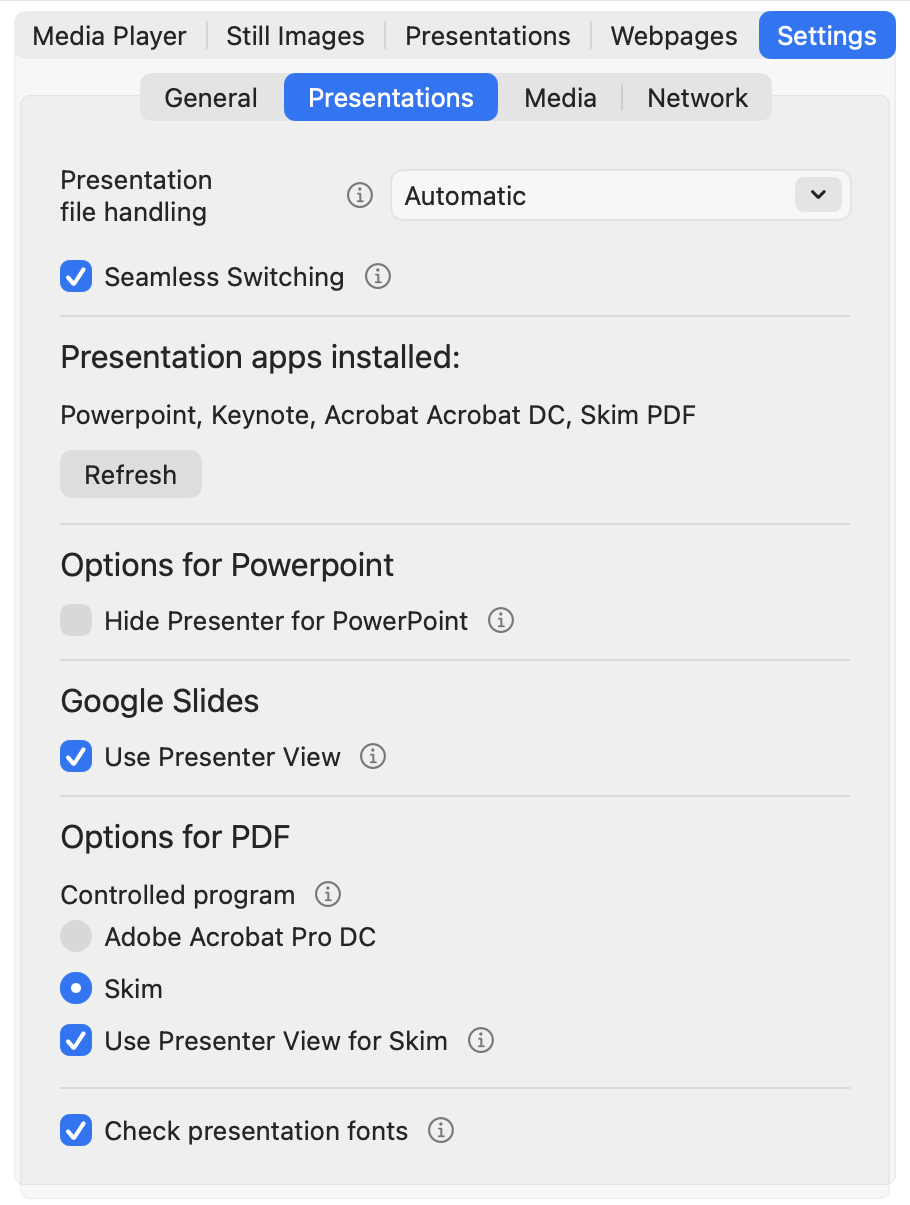
Presentation file handling
APS supports two ways of determining which presentation file is currently active. This method is used in the commands to switch to the next presentation in the folder, among other things.
Automatic (default)
APS asks the presentation app for the full file path of the current document. This works in most cases, but can fail with cloud-based files, shared folders, or files opened from unexpected locations. If the file path can’t be resolved, APS will show an error.
Controlled
APS uses the watched folder as the source of truth. It only asks the presentation app for the document name and matches it against the watched folder, relying on the watched folder’s known files and order to identify and control the active presentation. If the current file is not found in the watched folder, APS shows an error and stops. This mode provides more predictable behavior in live event setups.
Seamless switching
When seamless switching is on, switching from one presentation to another in fullscreen will look like a cut or fade-transition between two slides. APS will display a screenshot of the current slide before opening and displaying a new presentation. For seamless PDF switching, use Skim; Adobe Acrobat Pro does not handle this workflow reliably.
Presentation apps installed
This shows a list of the currently installed presentation-apps that can be controlled by APS.
Options for PowerPoint
Hide Presenter for PowerPoint
If this setting is on, Presenter view will not be used for APS commands with PowerPoint. Note that this overrides the PowerPoint settings for Presenter View.
Options for PDF
Controlled program
Here you will see which program will be used by APS to control PDF presentations. The options are Adobe Acrobat Pro and Skim PDF. If both programs are installed on your Mac, you can choose one of them.
Use Presenter View for Skim
Show the audience PDF on Main presenter screen with a synchronized view of the same PDF on another display. The second view keeps its title bar. The setting applies the next time a presentation starts. Each start sets Skim’s synchronized notes document to the same PDF with zero page offset. APS leaves those choices in place when the presentation ends.
Google Slides — Use Presenter View
Open the audience slideshow on Main presenter screen and the presenter view on the other screen when available. See Google Slides.
Check presentation fonts
Enable optional font checking for presentations in slots and the watched folder. It is off by default. See Fonts.
Media
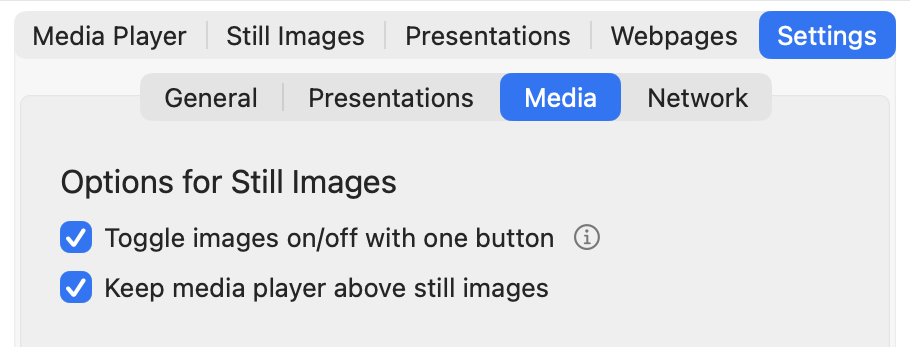
Still Images
Toggle images on/off with one button
When activated the same button and command can be used to turn on and off the image.
Keep media player above still images
Choose whether media stays above APS still images, Freeze, Blackout and Test. The default is on for Mac. Turning it off restores ordering by the most recently displayed APS output. The setting is saved and can also be changed from a compatible APS Hub.
Network
Network
Remote control and incoming file transfer have separate ports. Configure both using the options below.
Network access
Choose All networks, a specific Ethernet or Wi-Fi interface, or Localhost. This applies to both remote control and incoming file transfers. Localhost allows only programs on this Mac; Hub or Companion on another computer cannot connect. A specific network also allows local programs. If that network is unavailable, APS stays unavailable to other computers until it returns. Changes apply immediately.
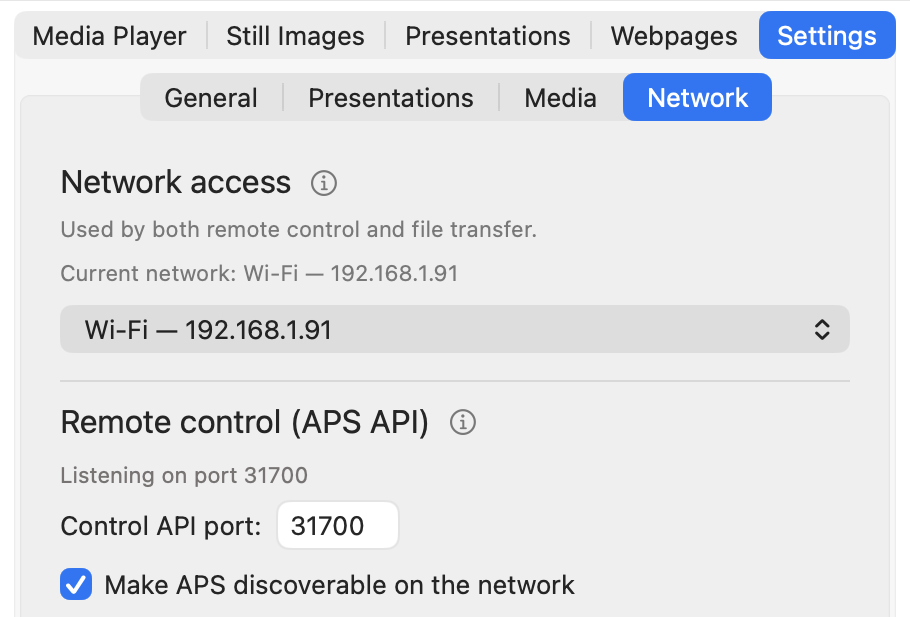
Remote control (APS API)
The default Control API port is 31600. Edit the number and choose Apply; the Listening on port line shows the active value. An unapplied edit is only a draft. Applying a new control port disconnects current controllers, which must use the matching port.
Make APS discoverable on the network allows compatible controllers to find APS. Turning it off stops advertising; direct connections still work. Localhost does not advertise APS to other computers. Connected clients lists current controllers, addresses, connection times and any reported names or sync-group roles. It is information, not an access-control list. See connecting from Hub.
File transfer
In Settings → Network, enable Allow incoming file transfers, then use Choose folder to select a writable receiving folder. The file-transfer port is normally 31602. Edit it and choose Apply to change it; the listening value is the active port. Control and file transfer must use different ports. Changing only the file-transfer port does not disconnect control clients.
Use the arrow beside the destination to reveal it in Finder. Clear folder permanently deletes its contents after confirmation. This differs from Hub’s presentation-file deletion to Trash. A working control connection does not prove that uploads are enabled or reachable. See Hub file transfer.
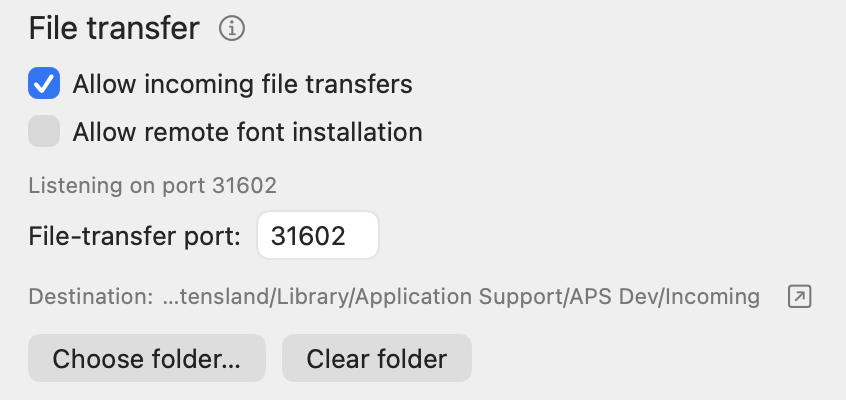
Allow remote font installation
This is off by default and can only be enabled in APS on this Mac. Incoming file transfers must also be enabled and listening. APS Hub 1.1 or later can then install .ttf and .otf fonts for the current user. Installation does not automatically close presentations or restart PowerPoint. See Fonts.
9. Control with Companion
Companion is an open-source software that lets you control multiple devices through the local network. It is possible to connect a Stream Deck box with buttons for better hands-on operation, or you can use a web-browser. For more info and download-links, please go here: www.bitfocus.io
9.1 Companion compatibility
Use a current stable Companion release with the PresentationTools: Auto Presentation Switcher connection. Available actions depend on the installed APS module version. See the official APS connection page; do not assume features from a beta module are in the stable release.
9.2 Connect Companion and APS
- Start APS and Companion on computers that can reach each other on the local network.
- In Companion’s Connections, add PresentationTools: Auto Presentation Switcher.
- Set Target IP to the APS computer’s address. Use
127.0.0.1only when both apps run on the same computer. - Set Target Port to the active APS Control API port, normally 31600. Read the Listening on port value in APS Settings.
- Save and check that the connection is healthy.
To change the port, edit it in APS Settings and choose Apply, then use the same value in Companion. If connection fails, check APS’s selected network, address, active port and firewall. Localhost prevents controllers on other computers from connecting. See Settings and the illustrated Companion connection guide.
Companion preset examples below show an earlier interface. Use the connection settings above and the presets included with your installed module.
9.3 Add buttons
There are two ways to add commands in Companion. The easiest is to use the presets, then drag and drop the actions you need. Most of our commands can be found there.
You can also import the commands and customize through the regular button-menu
9.4 Use the commands
Assign a test presentation to slot 1 in APS, drag its Companion preset onto a button page and use Test to confirm the correct presentation opens. Then operate it from Companion’s web emulator or a Stream Deck. Check the selected connection when controlling several computers. See the downloadable APS Companion pages.
9.5 Youtube tutorials
We are creating videos on Youtube where we go more in depth on our Companion module. Watch it from here:
For remote control, Presentation Sync and Clicker Distributor, see the APS Hub user guide.
10. Control Google Chrome
APS can open and control web pages and web apps directly in Google Chrome — right alongside your PowerPoint presentations. This is especially useful for the kinds of web-based tools commonly used during events, conferences, and meetings, such as Google Slides, Mentimeter, and Kahoot. Instead of manually switching between applications, APS lets you manage everything from one place through the same remote commands used for your other presentation sources.
APS uses Google Chrome specifically because it is one of the few browsers officially supported by Google for services like Google Slides — ensuring that presentations and other web apps display and function correctly. For Google Slides in particular, APS goes a step further by offering special slide control, allowing you to navigate between slides remotely — just like you would with PowerPoint.
10.1 Controlling Google Chrome through the developer port
To control Chrome remotely, APS launches a dedicated instance of the browser with a developer port enabled. This is a built-in feature of Google Chrome that allows an external application to communicate directly with the browser — opening pages, switching between tabs, refreshing content, going fullscreen, and more — all without requiring any browser extensions or manual interaction from the user. In short, the developer port gives APS a reliable, direct line of communication with Chrome, allowing web pages and web apps to be controlled just as seamlessly as PowerPoint or any other presentation source.
This dedicated Chrome instance runs on its own separate profile, so it starts with a clean slate — no saved logins, bookmarks, or history from your personal browser carry over. Anything stored during an APS session can also be cleared independently.
Save work in regular Chrome before opening an APS webpage. When starting its controlled browser session, APS for Mac terminates regular Chrome instances. Use the Chrome session opened by APS, and sign in there if the webpage requires it. Personal Chrome logins are not copied into that profile.
10.2 Control Google Chrome from the user-interface
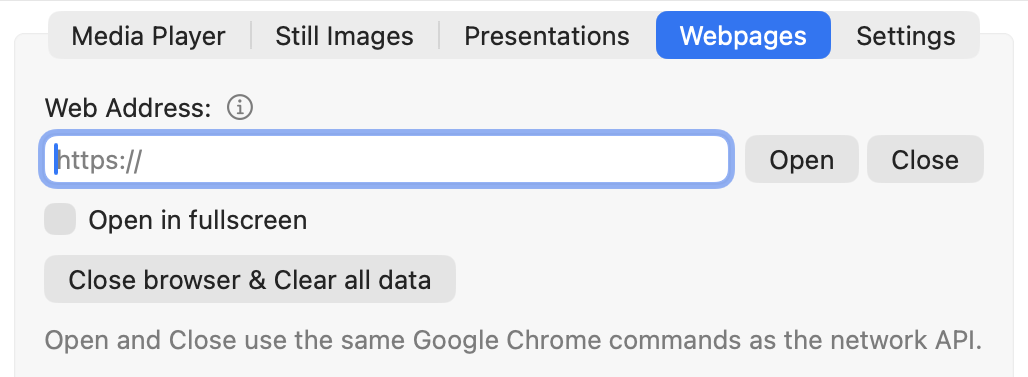
APS provides a Webpages tab in the main window where you can control Chrome directly.
To open a web page, type the URL into the address field and click Open. If the Open in fullscreen checkbox is ticked, the page will automatically go fullscreen when it opens. Close shuts down the APS-controlled browser session. You can also use Close Browser & Clear All Data to shut down the browser entirely and wipe any stored data such as cookies and login sessions.
You can also use the keyboard shortcut command + Up Arrow to put the active web page into fullscreen at any time.
The user interface and keyboard shortcuts are a convenient way to test that your web pages are loading correctly and to verify that APS can control Chrome as expected. However, in a production environment you would normally control web pages through network commands from Bitfocus Companion, which lets you build buttons for opening specific URLs, switching tabs, refreshing pages, and more — unlocking the full potential of APS’s Chrome control. This is covered in the next section.
10.3 Control webpages in APS from Bitfocus Companion
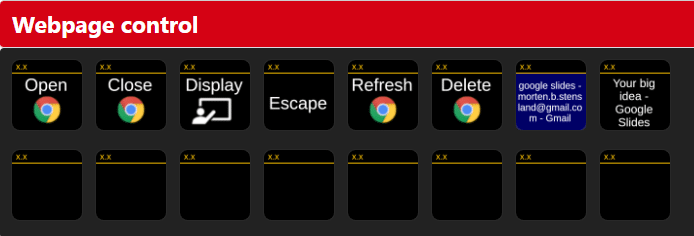
You can get most of the buttons you need for webpage-control from the presets in Companion, from the Webpage Control section. Here you can get similar commands as from the user-interface, along with more actions and feedback like changing tabs on the web-window.
10.4 Open web-pages
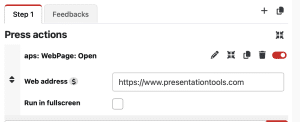
The “Open” button will open a URL in a similar way as the equivalent button in the UI, see 10.2 for more explanation.
10.5 Control web-tabs
You can control the web-tabs you have created with the “Webpage tab” buttons found in the presets. Note that the first time you find them in the presets, they will probably look empty, but by hovering over the buttons, you can see their names.
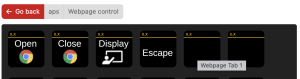
When you drag the buttons to a Companion page, then they will show the name of the webpage of the tab. For Google Slides and Slido presentations, these names will be the name of the presentation displayed. Note that the tabs will be sorted alphabetically, not in the order they are shown in the webpage.
The tab in blue is the currently selected tab. To change the currently selected tab, simply push the buttons.
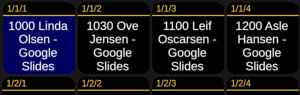
By default, Companion displays the webpage title on each button — the same text you see in the browser tab. This makes it easier to recognize content like a Google Slides presentation or a Slido poll during a live show.
However, if you prefer, you can choose to display the webpage URL instead.
🏷️ Webpage Title (Default)
The title is usually the name of the presentation or the content on the page.
✅ Easy to read
✅ Quickly shows what each tab contains
❗ May vary depending on the website
🌐 Webpage URL (Optional)
This is the actual link to the page (e.g. slides.google.com/…).
✅ More precise
✅ Useful for advanced setups or similar titles
❗ Harder to scan at a glance
10.6 Move the webpage window
The “Display” command will put the webpage in fullscreen on the external display, or the display you select as the “Main presenter screen” in the settings.
And to mirror this, the “Escape” command will put the web-window back to the main display.
Note that these commands are the same that are used for the presentations. They will react on the app that is in keyboard-focus: If you are controlling a PowerPoint presentation, they can put PowerPoint in fullscreen. So to use the “Display” and “Escape” commands to control the web-window, you first need to make sure that the web-window is the top application.
10.7 Multitask between PowerPoint and a webpage
To make sure that Google Chrome and PowerPoint are in window-focus, you can use the new buttons for application-control. This way, you can first select which application you want to control, and then use the “Fullscreen” and “Escape” buttons shown earlier. Or you can put a Chrome window and PowerPoint presentation in fullscreen on top of each other, and then use the application-buttons to switch what is shown to the audience. (see video)
If you haven’t already displayed the Chrome window in fullscreen behind the PowerPoint, you can use the “Display” command to move the window to the external display and then stack it on top of PowerPoint. By enabling “Seamless transitions” from the settings, the transition between PowerPoint and the Chrome window will be seamless.
You can also operate webpages from APS Hub’s Webpages tab, including opening URLs, switching tabs and controlling Google Slides.
10.8 Control Google Slides
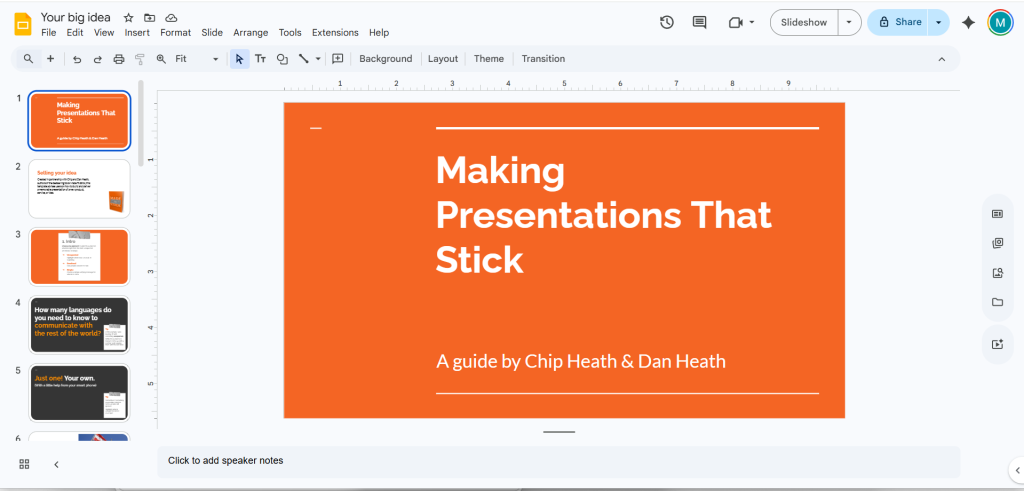
APS will detect that a Google slides presentation is displayed and act accordingly. There are no extra commands for Google Slides.
Fullscreen presentation
Through APS you can put Google Slides presentation in and out of fullscreen automatically: whenever APS detects that a Google Slides presentation is in edit-mode, then every command to take the presentation to fullscreen will take the presentation out of edit-mode (if necessary) and show the presentation in slideshow-mode. Likewise, if you exit a fullscreen presentation on the main presenter screen configured in the settings, then the presentation will go back to edit-mode.
The Tab-commands will also take Google Slides in and out of fullscreen automatically. This means that you can switch between Google Slides presentations, or go between Google Slides and a regular webpage, and APS will ensure that after the command is executed, the new presentation or webpage will stay on the correct display in fullscreen.
Slide info for Google Slides
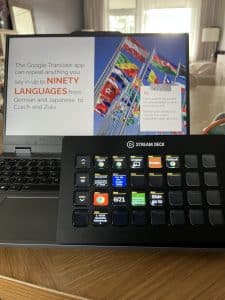
While a Google Slides presentation is displayed, APS will read slide-info from the webpage, and send current slide-number and total number of slides over the network-connection for listening devices like Bitfocus Companion. In Companion, this slide-info will be found with the variables
$(aps:slide_number)
$(aps:slides_count)
These variables are the same that is used for the other presentation-apps including PowerPoint and can be found in the Companion presets. This means that you can have the same Companion buttons showing slide-info regardless of which presentation-program you are working with.
You can also use the generic commands “go to slide number” to go to a specific slide while Google Slides is in slideshow-mode.
Google Slides Presenter View
In Settings → Presentations, Use Presenter View opens the audience slideshow on the configured presentation screen and places presenter view on the other screen when available. With it disabled, APS uses a normal fullscreen browser page. Test the actual deck and display arrangement.
Compatible controllers can also report Google Slides animation steps. Feedback availability depends on the presentation and app state; an arbitrary webpage does not provide Google Slides feedback. See Hub’s slide and animation status reference.
10.9 End the session and delete browsing data
When you control the Google Chrome web-window through APS, you use a custom APS user-profile. This means that the browsing-data used for this session is detached from your main Google Chrome profile. The first time you use this web-window, you will need to log in again, but it’s possible to keep the login if you close and re-open the window.
By keeping a separate profile, you can protect your private browsing-data from the web-content you display to an audience through the APS google chrome webpage.
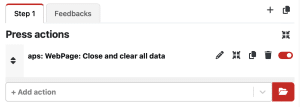
After the job is done, it’s a good idea to delete all data from the custom profile. This ensures that none of the login-info or browsing-history will be kept for the next job. You can do this with the APS command “Close and clear all data”.
11. APS API
You can also control APS over the network without Companion. Through our open API you can build applications that can interact with APS in different ways. Or you can control it directly from applications like Vmix.
The API is free for anyone to use.
Link to the public APS API
APS Hub is built on this API — see the Hub user guide.
12. More info
Troubleshooting
If a presentation cannot be opened, check that its local path still exists, cloud files are available offline and the required presentation app is installed. In Controlled mode, check the selected watched folder. Resolve application dialogs locally before testing from a remote controller.
If a shortcut fails, bring the supported presentation app to the front and check for another program using the same shortcut. On Mac, also inspect App Permissions.
If slides advance twice, check for duplicate paths through the physical clicker, Companion and Hub’s Clicker Distributor. If remote control fails, compare the configured address, network selection, active control port and firewall. See Hub troubleshooting.
When contacting support, include APS version, operating system, presentation app, expected result, actual result and steps to reproduce it. Export the APS log when requested.
We also put some instructional-videos on our Youtube-channel
Contact: