

Control PDF presentations
PDF is still a commonly used presentation-format on conferences and events. With APS, we make it easier to open PDF-files, and display PDF-presentations in fullscreen on the correct monitor.
By combining APS with Companion and Stream Deck, you get dedicated buttons to open PDF-presentations, and monitor your slide-progress. (Windows)
In this guide, we show you how to use APS, Companion and Stream Deck to get a dedicated remote-controller for your PDF software.
1. PDF compatible programs for APS
Below is a list of the PDF-programs that can be controlled through APS:
Windows
Okular
Adobe Reader
Adobe Acrobat Pro
Mac
Skim PDF
Adobe Acrobat Pro
APS can remote-control industry-standard software that displays PDF. This way, we ensure that the PDF looks 100% like the presenter intended, and you can prepare the presentations in a familiar manner. Most of the time you work with the PDF-programs like you are used to, and APS is only used when for operations that is hard for the PDF-programs to do by themselves, like displaying new PDF-presentations, or close the current PDF and open the next PowerPoint.
How to select a PDF program for APS
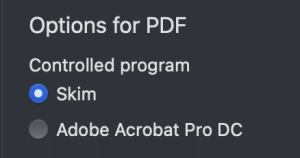
After installing the compable PDF-programs, they should be recognised by APS and be shown in the settings-menu. If you have installed more than one compatible PDF-program, you can choose between them. If only one is installed, it will be selected as the controlled program.
The controlled program will be used by APS to control PDF´s.
PDF file control
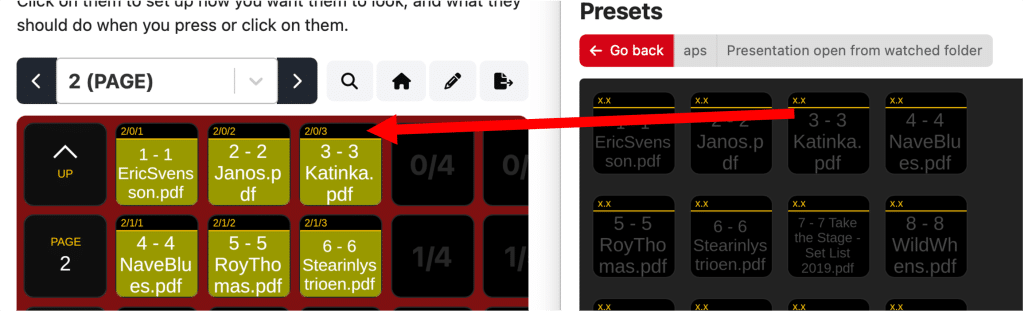
APS has multiple ways to open PDF files from Companion buttons: You can select individual presentations that are fixed to a button-position, or spread all presentation-files from a folder over a range of buttons. The “Next” command will take you to the next presentation in a folder, when a powerpoint-presentation is in fullscreen.
From the presets you can drag and drop “open presentation” commands to the buttons as needed.
PDF file-control is similar to how we control Keynote (Mac) and PowerPoint (Mac and PC). You can mix these file-formats and switch seamlessly between them from the same type of Companion buttons.
Learn more about presentation file-control through APS and Compaion
2. Settings for PDF
Companion options
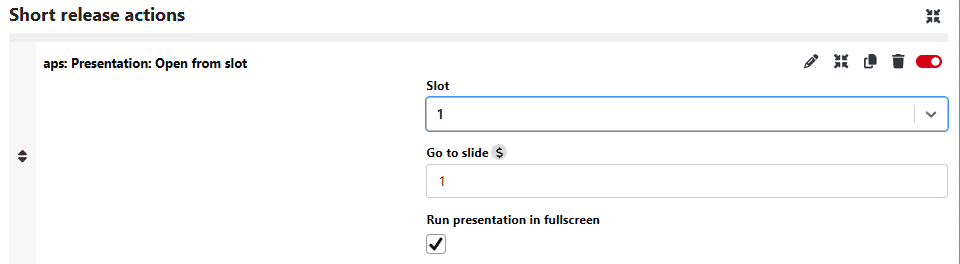
All the Companion commands to open PDF presentations has two options in common:
Go to slide
This sets the slide from where the Presentation will start. The option accepts variables, which makes it possible to remotely control this number in more advanced setups.
Run presentation in fullscreen
If this option is on, PowerPoint will open in fullscreen/slide show mode. If this option is off, the PowerPoint file will just be opened in edit-mode.
Set Main Presenter Screen

There are some differences between the different PDF-programs in how APS commands puts a PDF in fullscreen. For most programs, the Main Presenter Screen will be used. This means that when an APS command puts a PDF in fullscreen, it will be displayed in the screen chosen in the APS settings.
However, for Okular on Windows, this setting will be ignored. Instead, the internal program-settings in Okular will decide which screen will be used when going to presentation/fullscreen mode.
3. Control and monitor PDF slides from Companion
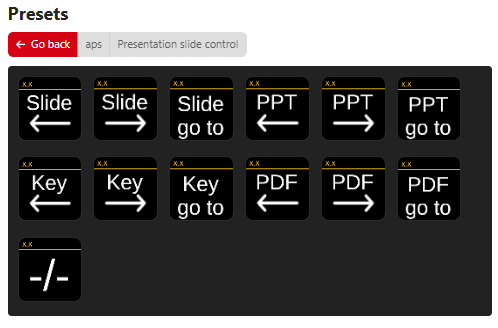
With APS and Companion you can advance your slide, go to a specific slide, and get information about the slides in your current PDF presentation. Most of the commands can be found from the preset-folder “Presentation slide control”
Next/previous slide and Go To slide
There are two ways to go to specific PDF slides:
Generic Slide commands
These will emulate keyboard-shortcuts and work for all APS-controllable presentation-programs. In the presets, these are the first 3 buttons starting with “Slide”.
Use these slide-commands for controlling Adobe Reader, Skim and Okular.
Adobe Acrobat Pro specific commands
The “PDF” slide commands shown in the presets above will only work with Adobe Acrobat Pro. You can use these commands if you want to work with a PDF-document while multitasking with other apps in window-focus.
Monitor slide progress – Windows
Compatible with:
Okular
Adobe Acrobat Pro
For these programs in Windows, the button shown on the bottom in the presets will show the current slide and total number of slides in the PDF-presentation.