

Control Keynote presentations
Keynote for Mac is a popular presentation-format for professional speakers that want to engage their audience. With APS and Companion you can control Keynote-files, advance the slides, and get real-time updates on the presentations.
1. Keynote file control
There are several ways to open Keynote files from Companion buttons: You can select individual presentations that are fixed to a button-position, or spread all presentation-files from a folder over a range of buttons. The “Next” command will take you to the next presentation in a folder, when a powerpoint-presentation is in fullscreen.
From the presets you can drag and drop “open presentation” commands to the buttons as needed.
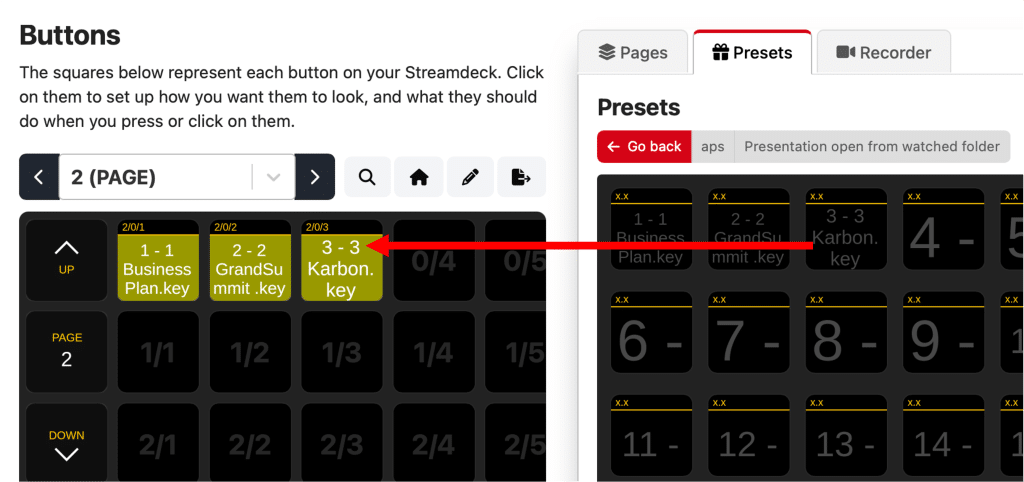
Keynote file-control is similar to how we control Keynote (Mac) and PDF. You can mix these file-formats and switch seamlessly between them from the same type of Companion buttons.
Learn more about presentation file-control through APS and Compaion
2. Settings for Keynote
Companion options
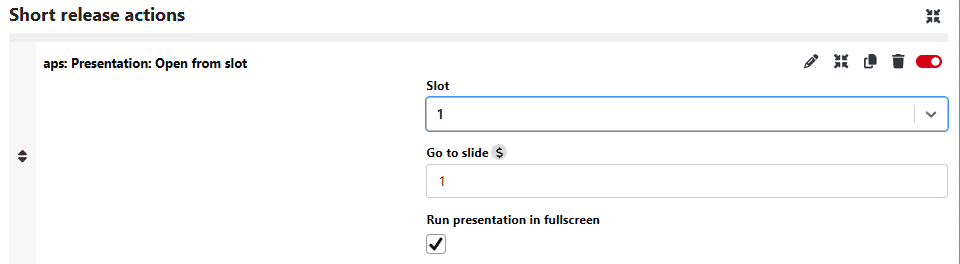
All the Companion commands to open PowerPoint presentations has two options in common
– Go to slide:
This sets the slide from where the Keynote presentation will start. The option accepts variables, which makes it possible to remotely control this number in more advanced setups.
– Run presentation in fullscreen:
If this option is on, Keynote will open in fullscreen/slide show mode. If this option is off, the Keynote file will just be opened in edit-mode.
Keynote settings for slideshow mode
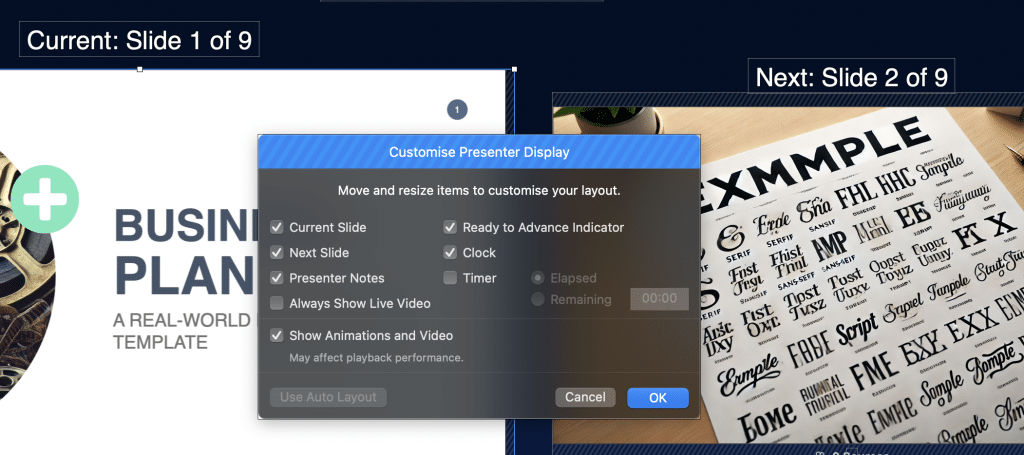
APS has no internal settings for Keynote. The command to put Keynote to fullscreen will trigger the “Play” command in Keynote, so the presentation should look similar if you start it from Keynote itself or an APS command.
From the Keynote settings, you can decide which display the presentation will open in, and you can customise the Presenter display.
3. Control and monitor Keynote slides from Companion
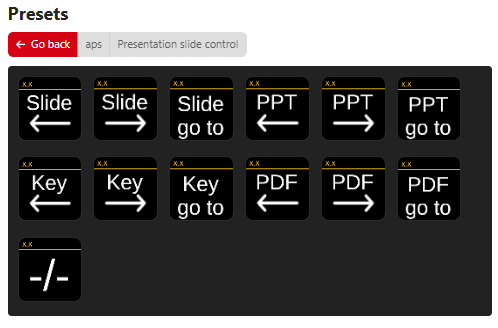
With APS and Companion you can advance your slide, go to a specific slide, and get information about the slides in your current Keynote presentation. Most of the commands can be found from the preset-folder “Presentation slide control”
Next/previous slide and Go To slide
There are two ways to go to specific Keynote slides:
– Generic Slide commands
These will emulate keyboard-shortcuts and work for all APS-controllable presentation-programs. Use these if you plan to control more than just PowerPoint. In the presets, these are the first 3 buttons starting with “Slide”
– Keynote specific commands
These will only work with Keynote, and they dont require PowerPoint to be in keyboard-focus, the only requirement is that a Keynote presentation is displayed. In the presets, these commands starts with PPT
Monitor slide progress
The bottom button in the presets will show the current slide and total number of slides in the presentation.