

Control Google Chrome web apps
During live events, AV technicians often need to display web-based content on external screens — from Google Slidespresentations to interactive tools like Slido and Kahoot. With Auto Presentation Switcher (APS) and Bitfocus Companion, you can control Google Chrome directly from Stream Deck buttons — opening URLs, switching between tabs, triggering fullscreen, and navigating Google Slides — all without touching a mouse or keyboard.
How to control Google Chrome from Companion and Stream Deck
This guide assumes you have already connected APS with Companion.
Most of the commands can be found in the presets section in the Companion module, from the “Webpage control” tab.
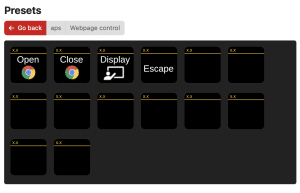
1. Open a new web-window
APS can create a Google Chrome web-window that can be controlled and monitored through the Chrome debugging port 9222. This means that you get more control and information from the web-window that what you can do with normal browsing. In order to open this special Chrome window, first ensure that Google Chrome has no window opened, then use the APS command Webpage: Open to open the window with the URL that you write in the field.
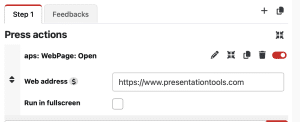
2. Control web tabs
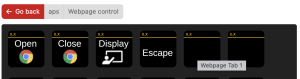
The “Webpage Tab” buttons found in the presets lets you control web-tabs in the google chrome window. Note that in the presets, the buttons might look empty, but by hovering over them, you will find the name. Drag & drop as many as these buttons as you like on to the Companion page. For example, if you want to control up to 10 tabs, then use buttons 1-10
On these buttons, you will see the webpage titles on the tabs you have created. These titles will also be used for sorting the order of buttons. For Google Slides and Slido, the webpage-title is always the name of the presentations. This means that you can name the Google Slides presentations in an alphabetically or numerical order, and they will show up in the same order on the Companion buttons.
The tab in blue is the currency selected tab. To change the currently selected tab, simply push the buttons.
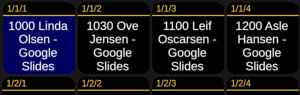
By default, Companion displays the webpage title on each button — the same text you see in the browser tab. This makes it easier to recognize content like a Google Slides presentation or a Slido poll during a live show.
However, if you prefer, you can choose to display the webpage URL instead.
🏷️ Webpage Title (Default)
The title is usually the name of the presentation or the content on the page.
✅ Easy to read
✅ Quickly shows what each tab contains
❗ May vary depending on the website
🌐 Webpage URL (Optional)
This is the actual link to the page (e.g. slides.google.com/…).
✅ More precise
✅ Useful for advanced setups or similar titles
❗ Harder to scan at a glance
Control Google Slides presentations
APS automatically detects when a webpage is a Google Slides presentation and handles it accordingly — there are no separate commands for Google Slides. The same commands you use for regular webpages and for other presentation apps will work.
Automatic slideshow mode
When you use a Display or Tab command on a Google Slides presentation, APS will automatically take the presentation out of edit mode and into slideshow mode on your configured presentation screen. If presenter view is enabled in the settings, APS will also open the presenter view window on the operator display. When you escape, the presentation goes back to edit mode.
This also works when switching between tabs. If you switch from one Google Slides presentation to another, or from a regular webpage to a Google Slides tab, APS ensures the new content ends up in the correct state — in slideshow mode on the right display.
Slide progress and navigation
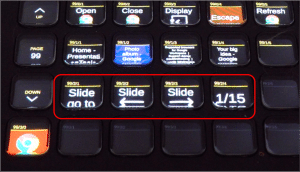
While a Google Slides presentation is in slideshow mode, APS reads the slide progress from the page and sends it over the network to Companion. In Companion, the same slide feedback buttons and variables you use for PowerPoint will show Google Slides progress:
$(aps:slide_number) $(aps:slides_count)
You can also use the generic “go to slide number” command to jump to a specific slide, and the standard next/previous commands to navigate — the same buttons you already use for PowerPoint and Keynote.
3. Move the webpage window
The “Display” command will put the webpage in fullscreen on the external display, or the display you select as the “Main presenter screen” in the settings.
And to mirror this, the “Escape” command will put the web-window back to the main display.
Note that these commands are the same that are used for the presentations. They will react on the app that is in keyboard-focus: If you are controlling a PowerPoint presentation, they can put PowerPoint in fullscreen. So to use the “Display” and “Escape” commands to control the web-window, you first need to make sure that the web-window is the top application.
For Google Slides, the Display and Escape commands also handle entering and exiting slideshow mode automatically — you don’t need to trigger this separately.
4. Multitask between PowerPoint and a webpage
To make sure that Google Chrome and PowerPoint are in window-focus, you can use the new buttons for application-control. This way, you can first select which application you want to control, and then use the “Fullscreen” and “Escape” buttons shown earlier. Or you can put a Chrome window and PowerPoint presentation in fullscreen on top of each other, and then use the application-buttons to switch what is shown to the audience. (see video)
If you haven’t already displayed the Chrome window in fullscreen behind the PowerPoint, you can use the “Display” command to move the window to the external display and then stack it on top of PowerPoint. By enabling “Seamless transitions” from the settings, the transition between PowerPoint and the Chrome window will be seamless.
4. End the session and delete browsing data – How to stay compliant
When you control the Google Chrome web-window through APS, you use a custom APS user-profile. This means that the browsing-data used for this session is detached from your main Google Chrome profile. The first time you use this web-window, you will need to log in again, but it’s possible to keep the login if you close and re-open the window.
By keeping a separate profile, you can protect your private browsing-data from the web-content you display to an audience through the APS google chrome webpage.
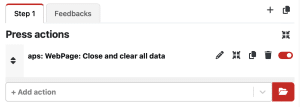
After the job is done, it’s a good idea to delete all data from the custom profile. This ensures that none of the login-info or browsing-history will be kept for the next job. You can do this with the APS command “Close and clear all data”.
Workflow example – Display Slido in fullscreen on the external display
The video below shows how you can use the APS fullscreen command to put Google Chrome webpages in fullscreen on the external monitor. It is easier to display the webpage if you just mirror the screen, but this has some drawbacks:
– some web-apps dont allow you to hide the mouse
– if you have a 16:10 monitor, mirroring the display can lead to wrong aspect ratio.
So you have more control if you display the webpage on the external display, and with APS and Companion you dont need to drag the browser-window around on small multiviewers.